Tampilkan postingan dengan label Google Tricks. Tampilkan semua postingan

Google Brain Comming Soon : Google Brain Awesome Video

Posted by Unknown Rabu, 27 Juni 2012 0 komentar
Have you ever had a dream about the computer that servers like human and performs work itself  according to the situation ?
We only see this on certain movies but Scientists are trying to  bring this science fiction to science fact.
Google as a team is  planning a new computer which will think like humans and performs with artificial intelligence.Goolge named this project as "Google brain".
This is a combination of thousands of microprocessors in the computer.After the project of "Google glasses" Google team is coming up with a quiet innovative project.
This computer can answer to the user asked question and performs like a human brain.
Let us wait for this new Google project to release.


Watch the Demo Video For Google Brain :-


Join our social network sites Google+ Facebook ,Twitter  for Instant Updates


Baca Selengkapnya ....

Bing Provides Awesome Background Images To Your Google Homepage

Posted by Unknown Jumat, 18 Mei 2012 0 komentar


Now Bing Provides  a New Images  on their homepage every day. Google Prefers Rotating  their Doodles on their  Homepage but they do offer you an option to add background images manually from the public photo galleries of Picasa.


By the Chrome Extension Bing Wallpaper for Google Homepage you can able to set the Bing Images to your Google Homepage and  It will automatically set your Google homepage background to the image that’s currently featured on the Bing homepage.


See also :-
http://technohackzs.blogspot.in/2012/04/set-bing-images-as-your-desktop.html


Install Extension :- Bing Wallpaper for Google


There’s a Similar App in the Android Market, Called Bing Live Wallpaper, that will make the Bing image your default live wallpaper on the Android phone. Once you have installed the App, go to Settings –> Display –> Wallpaper and choose “Live Wallpaper” here.


Install App :- Bing Live Wallpaper.


Bing Homepage :-


After Installing the Chrome Extension 


Google Homepage With Bing Image :-


And in this you can able to select any image there is lot of images are stored in the Extension and you can able to upload the Image from your Picasa Albums .


In the Homepage Click the Change Image Background and you can able to select the any image to your Google Homepage .see the above image .There is Featured Images are there in the Option .Select anyone of them.


That's it , If you like this post plz share with your Friends . Thank You For Visiting .

Incoming search terms:
Bing Backgrounds
Bing Wallpapers
Bing Images


Like our Facebook page to get instant updates on Hacking , Mobile tips ,Hacking Tricks, Many more..;


Baca Selengkapnya ....

Save Any Websites and Webpages as PDF Format Without Any Software or Extension By TechnoHackzs

Posted by Unknown Sabtu, 14 April 2012 0 komentar


There are Many PDF Writing Softwares ,Online Conversation Centers these can be help you save as Webpages as PDF Files,but by this Trick you Dont Need Any Software and Extensions For your Browser.By this Trick using Google Chrome it Can Directly saves a Webpage and website into PDF Format .By this You Can able to Learn the Topic any time and Save the Important Trick and Topic in your Computer . Only such thing you have to need is use Google Chrome Browser in your Computer .


Need :-


Google Chrome Browser .


See also:-
Real Origin Of Google Chrome Logo.


Follow the Instructions :-


  • Open your Google Chrome Browser and open which site or which topic in the Site .

  • Open Any Website or Webpage or facebook Group Inside Google Chrome .

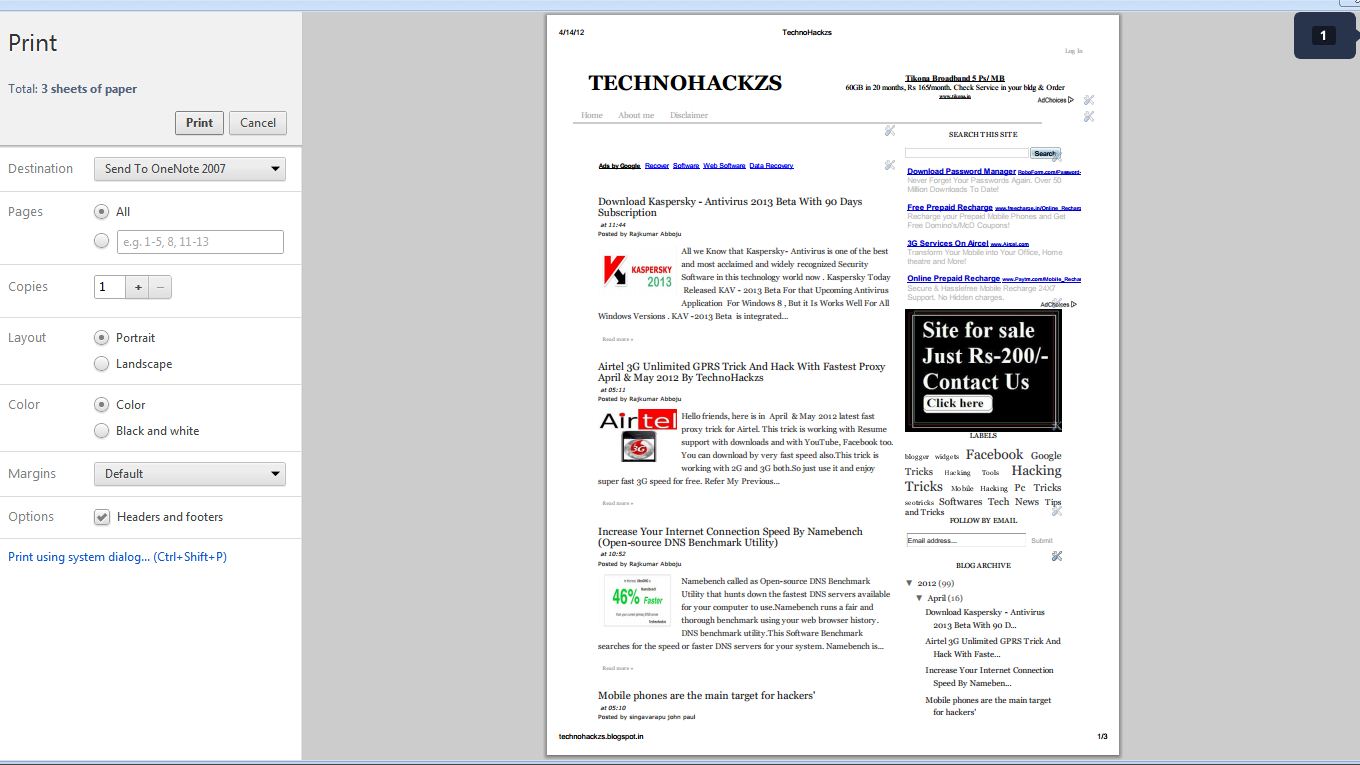
  • And After For Windows Press Ctrl+P and For Mac Press Cmd+P . See the Screenshot Below 


  • Next Open the Print Dialogue and Change the destination Printer or option into (or) select the Option "Save As PDF".

  • After Hit the "Print" Option and it will be Downloaded as a PDF file on your Computer .See the Screenshot Below .


  • You can also use Chrome’s PDF engine to convert your local image files, text files and any local HTML web pages to PDFs , if you an open a file in Chrome, it can convert the file to PDF.

  • So by this You Can able to Learn the Topic any time and Save the Important Trick and Topic in your Computer .Only such thing you have to need is use Google Chrome Browser in your Computer .

  • By this Trick also it having the Options Like Send to oneNote2007 , Microsoft XPS Document Writer and Fax .

So enjoy the Trick and Save Any thing and Convert Webpage Stuff into PDF Format and Learn Any time that and read that in More Easyway i.e in Zoomable .


Thank you For Visiting .


Baca Selengkapnya ....

Gmail Tap -just two keys to type any message !

Posted by Unknown Minggu, 01 April 2012 0 komentar

Gmail Tap:

Gmail Tap is a revolution in the typing. Gmail tap is using only two keys for typing any message over a smart phone . As now a days smart phones are increasing and the usage of internet over the phone is increasing. while it is very constructive to have all the keys on the smart phone. This feature of gmail tap has introduced a new two keys which can type all the alphabets and numericals.Only two buttons infinite possibilites.

Check the chart  to type any letter:


*Note: Click on the image to view bigger

This is going to be a great revolution in the feild of smart phone typing.This is a easy way to type intsead of the searching all the keys for typing a message.So , Friends wait for a while to enjoy the new gmail tap technology.Now watch this vedio and enjoy the Gmai Ttap features.
Coming to the details of this Technology Read Morse is the lead engneer of this gmail Tap and some other..This technology replaces all the keys with only two keys as show in the chart above.

Gmail Tap-Vedio:


Baca Selengkapnya ....

Google chrome multitask mode| Google latest features

Posted by Unknown 0 komentar

Google chrome multitask mode

As we know that Google always tries to introduce new features on web in this process to save the users time.It has introduced a multitask mode for browsing the web. By implementing this mode a user can use as many cursors and mouse points and browse the web.
Google chrome web designer Glen Murphy says "A user is using his 50% of his hands for browsing on web . so we are introducing this mutitask mode to save the users time and also as people are getting interest in doing multipe things at once"

Features and plus points of chrome multitask mode:

  • User can use more than one cursor/mouse at a time 

  • User can save time.

  • User can do more at less time 

  • User can have more fun on web by using multitask mode

  So have more mice , more friends and more fun web by chrome multitask mode.Try this multitasking mode here Try Multitask Mode

Check out this vedio for multitask mode details:


Incoming search terms: 
Google latest features 
google chrome multitask details 
How to more than one mouse 
Can we use more than one mouse for a computer?

Baca Selengkapnya ....

Google Digging and Art Of Googling By TechnoHackzs

Posted by Unknown Sabtu, 31 Maret 2012 0 komentar


Hi Friends Today I Will Explained About the Google Hacking .This is also called as the Art of Googling and Google Digging .


Google Dorks :-


1) Intitle :
2) Filetype :
3) Site :
4) Related
5) Inurl :
etc
By using the Above In the Google Search We can get the Exact results what we have searching,so this is called Google Hacking .


Intitle :-


Search for the Text In the Title of the Websites


Ex:- 
Intitle : Hacking.
Intitle : Security. 
Intitle : Technology.


This Search will Give you the List of All the Websites with title Hacking and Related to Hacking .


Site :-


To Narrow the Search of the Specific Website 


Ex : Site : www.technohackzs.blogspot.com
Site : nic.in admin login
Site : nitw.ac.in
site : nitw.ac filetype : pdf


It gives you the Confidential information of a site also
Site : gov.in filetype : doc confidential 


This Search will give you the list of all the web pages from the website technohackzs.blogspot.com
you can try the any site with this .


Filetype :-


Searching the Files of Specfic type in the form of docs , pdf , ppts .
and by this search we can get the reduced results from google and exact result like  ppt and pdf 


Ex:-
filetype : ppt Hacking 
filetype : pdf Hacking
filetype : doc Intitle: "Hacking" etc


Related :-
This gives the Related search of any website .... example type 
Related : Facebook.com
all social websites like facebook appear in your browser  .
Related : Nakuri.com.
Related : Google.com

Inurl :-
Inurl : Hacking 
Inurl : adminlogin.asp
Inurl : adminlogin.jsp
Inurl : adminlogin.aspx
By this you can login as a admin with trying of Sql Injection.


Watch Live CCTV Cameras :-


Type in the Google as 

liveapplet 

inurl: view/index.shtml.
intitle:liveapplet
intitle:axis intitle:"video server"
intitle:"EvoCam" 
inurl:"webcam.html"
intitle:"Live NetSnap Cam-Server feed"
intitle:"Live View / - AXIS 206M"
intitle:"Live View / - AXIS 206W" 
intitle:"Live View / - AXIS 210" 
inurl: indexframe.shtmlaxis.
intitle:"Live View / - AXIS"
intitle:"WJ-NT104 Main Page"
intitle:snc-z20 inurl:home/
intitle:snc-cs3 inurl:home/ 
intitle:snc-rz30 inurl:home/ 
intitle:"sony network camera snc-p1"
viewnetcam.com
intitle:"Toshiba Network Camera" user login
intitle:"i-Catcher Console-Webmoniter".

For More Go to Google and Type Google Hacking and
Go to Google > GHDB.

Thanku for the Visiting .

Baca Selengkapnya ....

Watch Live CCTV Cameras ( Secret or Network Cameras ) On Your Browser.

Posted by Unknown Kamis, 15 Maret 2012 0 komentar


Hi Friends today I will Explain About How To Watch Live CCTV or Secret Cameras In Your Web browser.
Depending upon the type of Camera that you have access to and may be able to control the camera like zoom , pan and tilt the camera .


Follow The Steps Below :-


Open your Browser and Choose any Search Engine .Try to Choose Google.


In the Google Type the Following Codes as i Given Below.


Command Codes For Live CCTV Cameras :-


  • liveapplet 
  • inurl: view/index.shtml.
  • intitle:liveapplet
  • intitle:axis intitle:"video server"
  • intitle:"EvoCam" 
  • inurl:"webcam.html"
  • intitle:"Live NetSnap Cam-Server feed"
  • intitle:"Live View / - AXIS 206M"
  • intitle:"Live View / - AXIS 206W" 
  • intitle:"Live View / - AXIS 210" 
  • inurl: indexframe.shtmlaxis.
  • intitle:"Live View / - AXIS"
  • intitle:"WJ-NT104 Main Page"
  • intitle:snc-z20 inurl:home/
  • intitle:snc-cs3 inurl:home/ 
  • intitle:snc-rz30 inurl:home/ 
  • intitle:"sony network camera snc-p1"
  • viewnetcam.com
  • intitle:"Toshiba Network Camera" user login
  • intitle:"i-Catcher Console-Webmoniter".


Thats it just type the codes in Google and Watch the
CCTV live cameras From any place . If you like this
post Plz share this post to your Friends .Thnku For
Visiting.


Baca Selengkapnya ....

Recover Gmail Passwords Via SMS By using Gmail Password Recovery Option

Posted by Unknown Kamis, 01 Maret 2012 0 komentar


Hi Friends Today I will Explain About the How To Recover
your Gmail Passwords by using the password recovery 
option in  your gmail account settings.


By Enabling these option you can also recover your 
forgotten Gmail password through a SMS.This recovery
method will send a Password-reset code to your mobile
number which you can access. 


The following Instructions  will guide you through the 
procedure of how to enable your Gmail account to
recover your password through an SMS message.


Refer also My previous Posts About Gmail:-


1) Gmail Key Board Shortcuts.
2) Features Of Google Serach Video.
3) Undo The Sent Mail In Gmail.
4) Awesome Google Tricks & Tips Together In One Place ( Try These all and expereince a lot ).


Follow The Instructions Below For Enabling the 
Gmail Password Recovery Feature :-


1) Login in to your Gmail Account and Go to Account Settings


2) In The Account Settings Option , Under The Security Option Click On the Change Recovery Options like the Image Below.


3) It  may be asked to Re-enter your password in order to protect your privacy.So Enter the password to verify and gain access into the Recovery Options page.


4) In the SMS Option Click The Add a Mobile Phone Number.


5) Now Choose Your Country And Your Location. Enter Mobile Number with the Country Code Prefixed To it .


6) Click On the Save Button and Logout From your Gmail Account Now you have done the option Change Recovery
option.


Recover Your Password By Using The Steps Below :-


1) In the Gmail Login Page Click On the Cant Access Your Account .


2)   Enter the Gmail address for which you want to recover the password and once you enter it, click on the Submit button.


3)  You will now be asked to enter the Captcha code displayed on the page thus opened. Enter the Captcha and click on Continue.


4)Then , you have to choose how you want to recover your password for your account. Since we are dealing with recovery of the password through an SMS message, select the optionthat says Get a verification code on my phone. You will be asked to enter your Phone number and the form in which you want to receive the verification code. Select the option Receive via Text message (SMS) and click on the Continue button.


5) And you have Received the Verification Code on your Mobile Phone.Enter the received code as such and click on the Continue button.


6) Now, the Reset Password page will be opened on your screens. In this page, enter a new password twice and click on Reset Password button.


Enjoy The Trick and If You Like My post Plz Share this Post and +1 this and Thank u For the Visiting. Keep Contact With Us.


Baca Selengkapnya ....

Gmail Key Board Shortcuts

Posted by Unknown Jumat, 24 Februari 2012 0 komentar


Hi Friends Today I will Gives You KeyBoard Shortcuts
For Gmail to get the fast access of the Gmail.If you Like
My Old post KeyBoard Shortcuts For Facebook then he
re is for you Gmail Keyboard Shortcuts.


Before Using this Keyboard Shortcuts you must enable 
the Keyboard Shortcuts On .


Here Is the Procedure for enable :-


1) Login to your Gmail account and click on Settings.


2) Under the General tab go to the option Keyboard 
shortcuts (from here you can turn them on or off), se
lect Keyboard shortcuts on and click Save Changes.


KeyBoard Shortcuts : -


Applications:


c : Compose
/ :  Search
q : Focus chat Contact Search
? : Open Shortcut Help


Actions :-


a : Reply all
r : Reply
x : Select Conversation
s : Start Conversation
y : Remove Label
e : Archive
m : Ignore Conversation
! : Report As Spam
# : Move To Trash
f : Forward
<Shift> + n : Update Conversation
<Esc>: Focus Last Chat Mole
z : Undo Last Action
. : Open More Action Menu
<Shift>+i : Mark as read
<Shift>+u : Mark As Unread
<Ctrl>+ s : Save Draft.


Navigation :-


u : Back to threadlist
k/j : Newer/older conversation
<Enter> : Open Conversation; collapse/expand coversation
p/n : Read previous/next message.


Jumping :-


g then i : Go to Inbox
g then s : Go to Starred Conversations.
g then t : Go to Sent messages
g then d : Go to Drafts.
g then a : Go to all mail
g then c : Go to Contacts


Threadlist Selection:


* then a : Select all Conversations.
* then n : De Select all Conversations.
* then r :  Select Read Conversations.
* then u : Select Unread Conversations.
* then s : Select starred Conversations.
* then t : Select unstarred Conversations.


Baca Selengkapnya ....

Features Of Google Search Video

Posted by Unknown Minggu, 19 Februari 2012 0 komentar


Baca Selengkapnya ....

UNDO THE SENT MAIL IN GMAIL

Posted by Unknown Jumat, 17 Februari 2012 0 komentar


As this is one of the oldest trick but many of us doesn't know about this feature so i thought of re-posting it in this blog.


we can undo the sent mail. simply, u have sent an e-mail to a wrong mail id, with this feature, we can un send the mail easily. 


the procedure is as follows:


 you need to go to Settings -> Labs -> Undo Send, and select ‘enable’.


 Once this feature is activated, you will see a new ‘Undo’ link appear on every sent mail confirmation. Clicked this link will take you back to the composing window allowing you to cancel the delivery or modify the message. 


This feature was added by g mail in 2009 itself but many still doesn't know about this..


NOTE: please comment your views and suggestions for better development of our postings.


POSTED BY
-GARUDA

Baca Selengkapnya ....

Awesome Google Tricks & Tips Together In One Place ( Try These all and expereince a lot )

Posted by Unknown Rabu, 08 Februari 2012 0 komentar


GO TO GOOGLE  and type the following:

  • Type in " Let It snow" and then  click on "i'm Feeling Lucky".[wait a sec to expereince the snow fall].

  • Type in "Google Gravity"and then  click on "i'm Feeling Lucky"[wait a sec to experience the effect of gravity].

  • Type in "elggog"and then click on "I'm Feeling Lucky"[the Mirror effect is on]

  • Type in " do a barrel roll" and then you expereince .... Did the Earth move for you? The image in your browser should — well, it should have done a barrel roll.

  • Type in "Who's Awesome" and then click on "I'm Feeling Lucky" any one can  dare to try????

  • Type in "tilt" and then you experience and that lets you visualize any web page DOM tree in 3D.

  • Type in "Who is the cutest"and  then click on "I'm Feeling Lucky"[then see who is cute and beautiful/handsome]

  • Type in "Google Loco"and click on "I'm Feeling Lucky"[then see what's moving]

  • Type in "LOL Limewire"and then  click on "I'm Feeling Lucky"[then see that you are as a picture]

  • Type in "Epic Google"and  then click on "I'm Feeling Lucky"

  • Type in "rainbow Google"and  then click on "I'm Feeling Lucky"

  • Type in "Annoying Google' and  then click on "I'm Feeling Lucky"

  • Type in "Google pacman"and click on "I'm feeling Lucky"

  • Type in "Google Magic"and click on "I'm Feeling Lucky"

  • Type in "Google Heart Page" and then click on "I'm Feeling Lucky".

  • Type in "Google colour[Ex: Red, Green, Pink, Yellow)" and then click on "I'm Feeling Lucky".

  • Type in "Epic box" and then click on "I'm Feeling Lucky".

  • Type in "sexy snape" click on "I'm Feeling Lucky".

  •  Type in "Google Sphere"and click on "I'm feeling Lucky"[then see the spinning effect]

  •  Type in "weenie google" and then click on "I'm Feeling Lucky".


Baca Selengkapnya ....

The Real Origin Of Google Chrome Logo

Posted by Unknown Jumat, 03 Februari 2012 0 komentar


Google Chrome is the most used web browser in the browser history. Google introduced Google Chrome in september 2008.At that time its a 2D logo which is normal and i looked at it in a normal way. When in March 2011 it changed its logo in 3D which grabbed my attention. The colors used in logo of Google Chrome and the logo of Microsoft is same. 


But, Is the LOGO of Google Chrome taken from Microsoft? What is the truth origin behind Google Chrome LOGO.


I had the same question and was thinking about it. After a while, i went to Google.com for searching something and noticed at  Google  Home Page LOGO. There are the lot of people that says that Google Chrome LOGO has taken from Pokemon but, It’s wrong.


Actually the LOGO of Google Chrome is taken from Google home page LOGO.I have did same color matching in the picture below which will clearly tell you that Google Chrome LOGO is taken from Google not from Microsoft or Pokemon.


Baca Selengkapnya ....
Trik SEO Terbaru support Online Shop Baju Wanita - Original design by Bamz | Copyright of apk xda.